

DATABASE_URL. Every value is encrypted at rest.
Add variables in the dashboard
- Open the app and go to Environment Variables.
- Click Add Environment Variable.
- Enter one or more key-value pairs. To import a
.envfile, drop it on the page, pick it with the file button, or paste its contents into a value field. - Pick the target environment, or All Environments to set the same value everywhere.
- Turn on Sensitive for secrets, and add a description if you like.
- Save, then redeploy. See When a change takes effect.
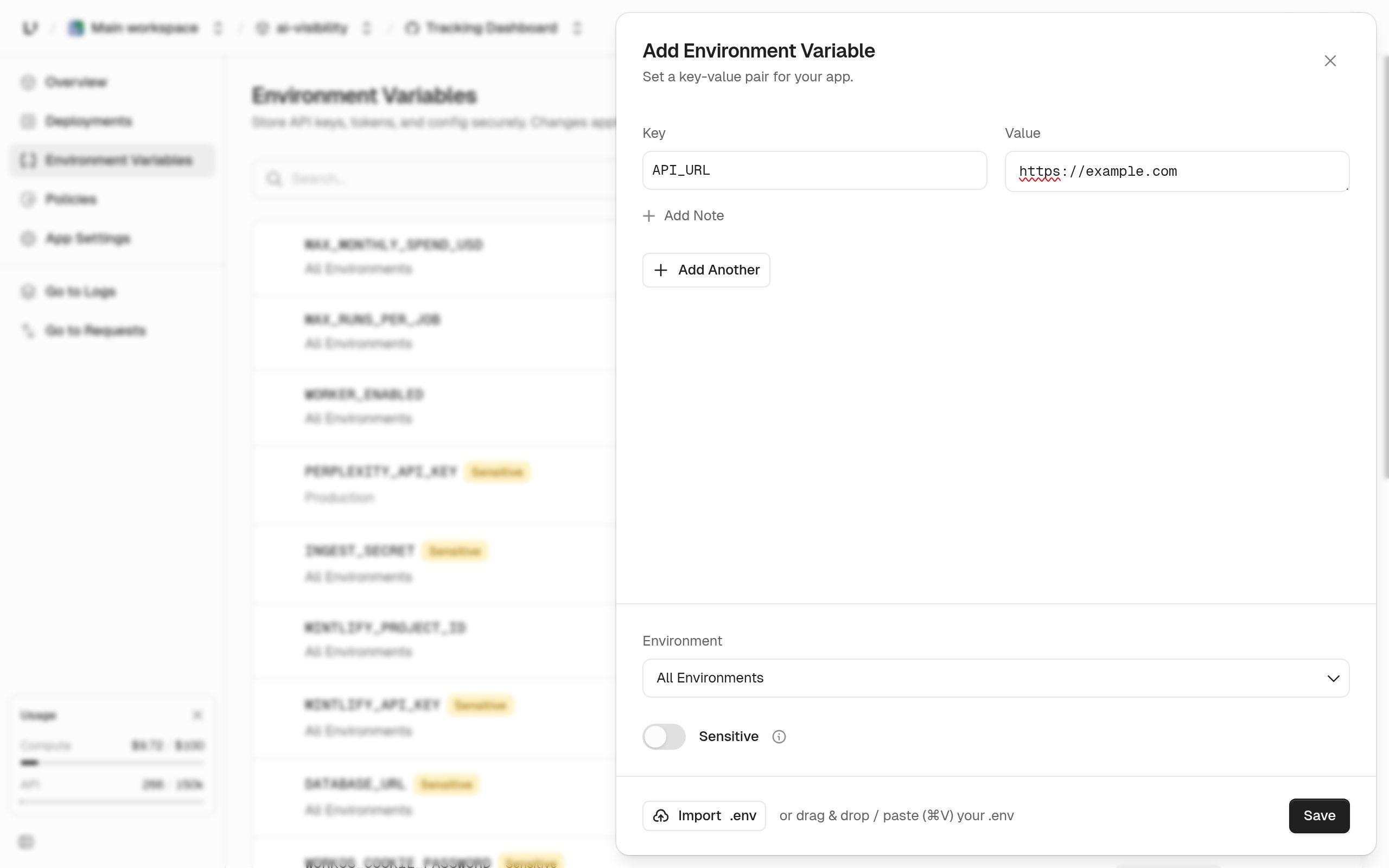
.env import skips comments, strips surrounding quotes, and handles multi-line values such as PEM keys. If a key appears twice in the file, the last one wins. Keys that already exist in the target environment are flagged with “Variable already exists in this environment”. Unsaved entries are lost if you reload the page.
The list can be filtered by environment, searched, and sorted by name or last update.
Recoverable or write-only
Every variable is eitherrecoverable or writeonly. Both are encrypted the same way. The difference is whether you can ever see the value again:
recoverable: shown in the dashboard and returned byenvironments.listEnvironmentVariables. Use it for configuration you want to check later.writeonly: never shown or returned. You can only replace or delete it. Use it for API keys and other credentials.
writeonly, with the note “Permanently hides values after saving. Use for API keys and secrets.” In the API, writeonly is the default.
Rename, mark sensitive, or delete
These actions are only in the dashboard:- Mark as sensitive turns selected
recoverablevariables intowriteonly. This can’t be undone. - Rename changes a key in every environment that has it. It fails if the new name is already used in any of them, and it isn’t available for sensitive variables.
- Delete removes a variable from one environment or from all of them.
When a change takes effect
A deployment keeps the variables it was created with, for its build and its instances. Editing a variable doesn’t change anything that’s already running. To apply a change, push or redeploy. The dashboard shows a redeploy banner after an edit.Set variables with the API
environments.setEnvironmentVariables creates or overwrites the variables you send, in one atomic call: if any variable is invalid, nothing changes. Variables you don’t send stay as they are.
An existing key is fully overwritten. If you leave out description or kind, they reset to empty and writeonly.
Change one variable and leave the rest
prune: true. Every variable not in your list is deleted. prune: true with an empty list deletes them all.
environments.removeEnvironmentVariables deletes the keys you name, and ignores keys that don’t exist. environments.listEnvironmentVariables returns each variable’s key, kind, createdAt, and description, plus value for recoverable ones only.
Limits
There’s no limit on how many variables an environment can have.
Variables Unkey injects
At build time, your variables are available as described in Build-time secrets. At run time, they’re set as environment variables in each instance, along with these:
If one of your variables has the same name as one of these, ours wins.
KUBERNETES_SERVICE_HOST and the other KUBERNETES_* variables some libraries look for are set to empty strings.
Next steps
Build-time secrets
Use variables during the build without baking them into layers.
Runtime settings
The port and disk settings behind
PORT and UNKEY_EPHEMERAL_DISK_PATH.