Roles
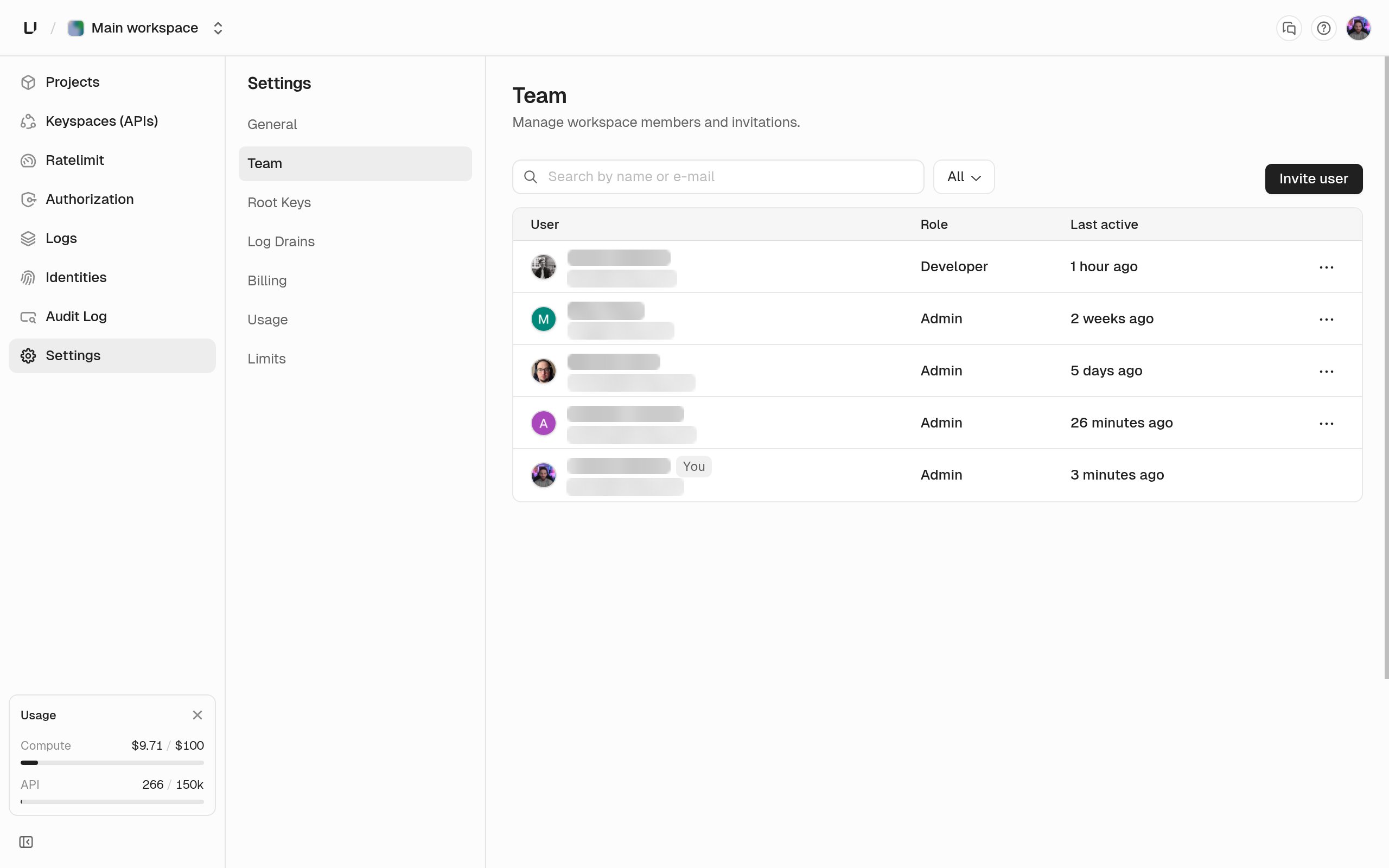
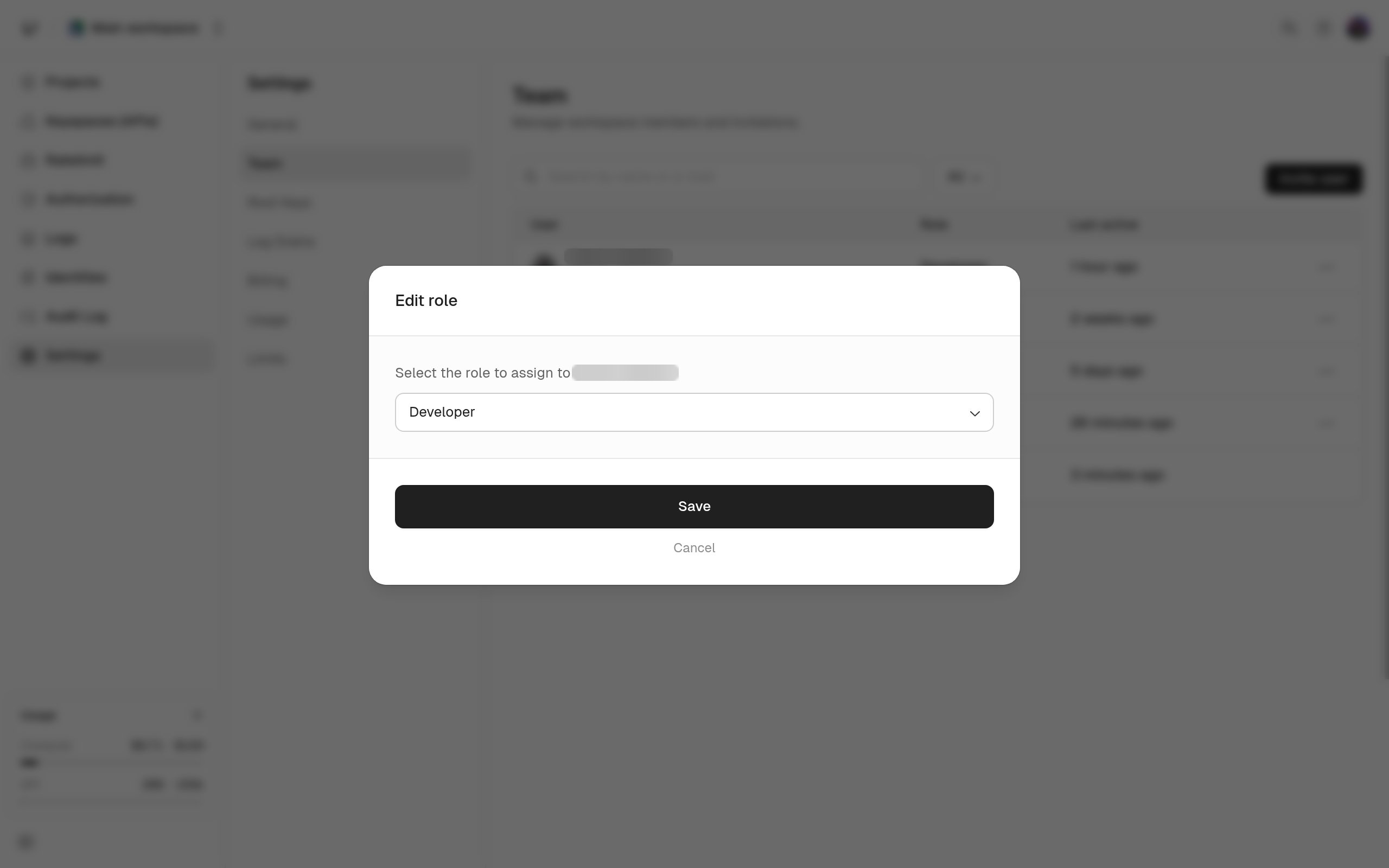
There are two roles.
A developer who tries an admin-only action gets
This action requires admin privileges., and the Root Keys tab doesn’t appear in their settings sidebar.
Accounts created before these two roles existed carry a legacy basic_member role. It keeps full developer access and the dashboard labels it Developer.
Which plans include team members
Free and Compute Starter don’t include team members, and the Team page shows Upgrade Your Plan to Add Team Members with a link to Billing instead of the member list. Compute Pro and Business include them, and so does any paid API tier. See Plans and Limits. If the workspace loses team access, we deactivate every member except the one who created the workspace. That happens when a paid API tier ends and you don’t have Compute Pro or Business, or when you’re on the free API tier and downgrade Compute to Starter or cancel it.Invite, change a role, remove someone
Use the Members section of Settings > Team. From that one table you invite someone by email address, pick Admin or Developer, change someone’s role, and remove a member.