

Roll back a deployment
- Open your project’s Deployments tab.
- Click the three-dot menu on the deployment you want to revert to.
- Select Rollback.
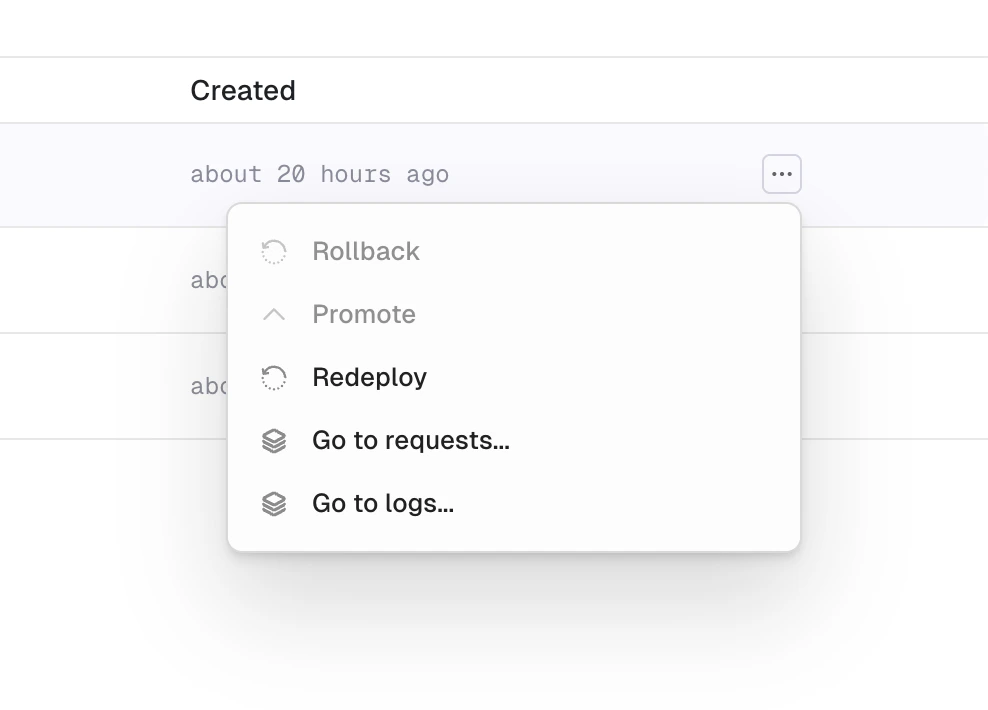
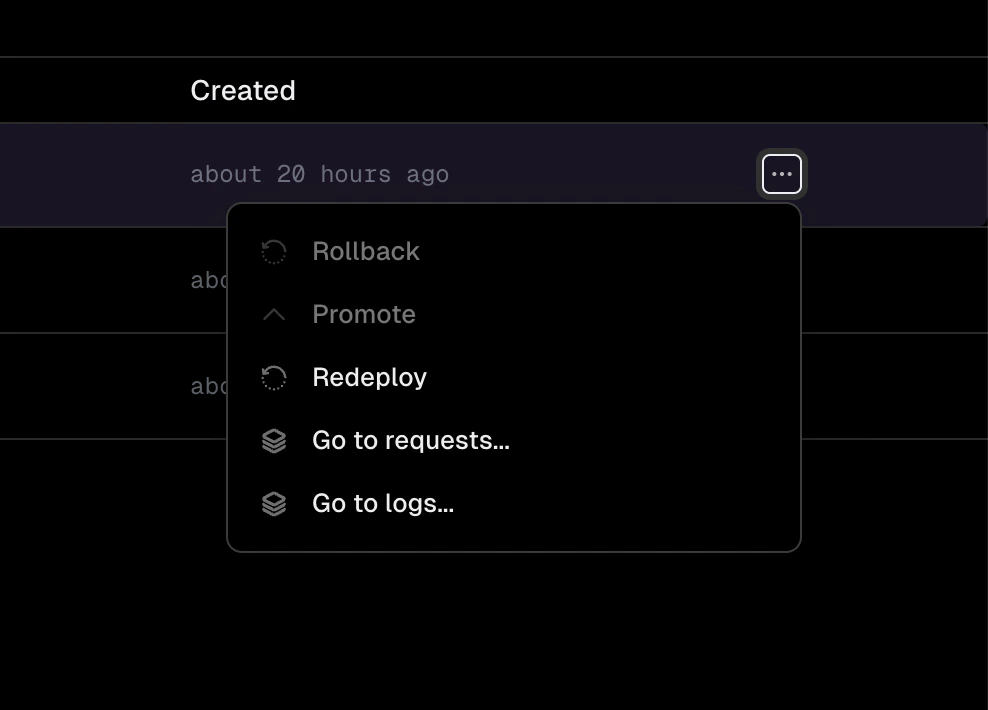
Deployment context menu with rollback, promote, and redeploy options
- Review the current deployment, affected domains, and target deployment in the confirmation dialog.
- Click Rollback to target version.
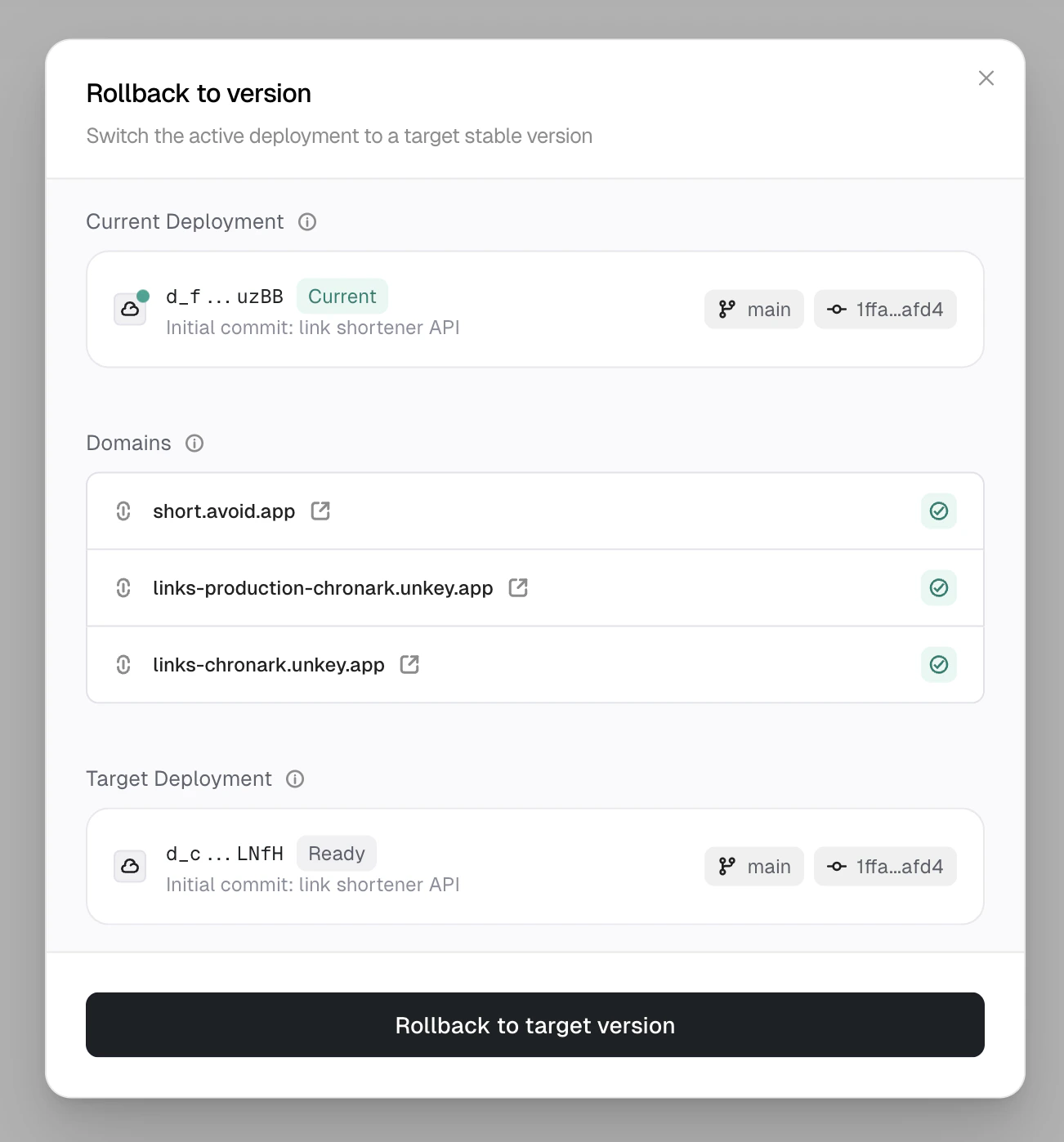
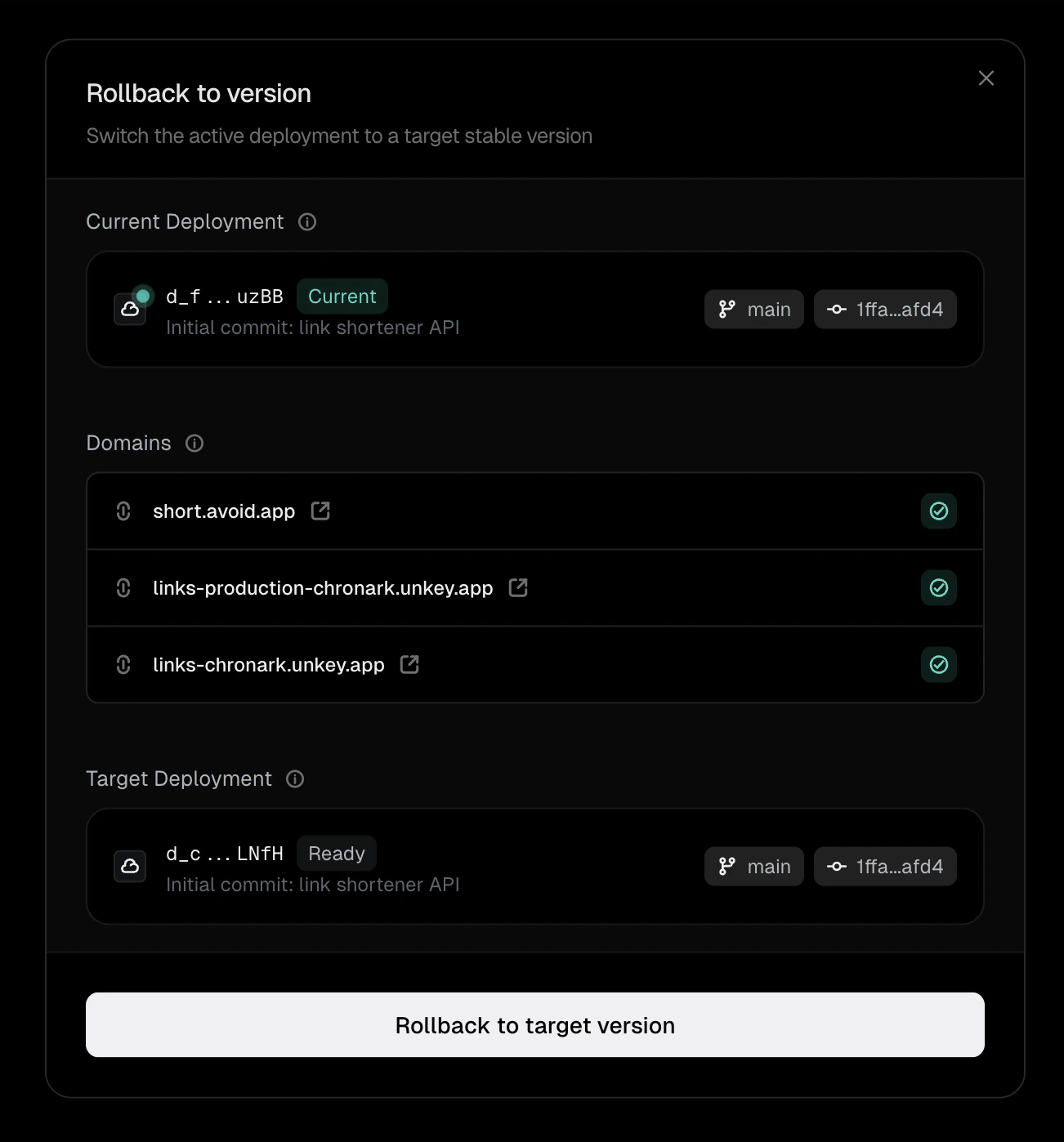
Rollback confirmation showing current and target deployments
What happens after a rollback
After a rollback, the affected environment enters a rolled-back state. This only applies to the environment where you triggered the rollback (for example, production). Other environments are unaffected. In a rolled-back environment:- The target deployment is serving traffic.
- New pushes to the branch still create deployments, but domains don’t get reassigned to them automatically.
- The dashboard indicates that the environment is running a rolled-back version.
Promote a deployment
Promoting a deployment reassigns domains to point to it and restores normal behavior. After promoting, the next successful deployment from a push automatically receives traffic again.- Open your project’s Deployments tab.
- Click the three-dot menu on the deployment you want to promote.
- Select Promote.
Rolling forward vs rolling back
Rolling back is faster since it reuses an existing, known-good deployment. Rolling forward (pushing a fix) creates a new deployment and goes through the full build and deploy pipeline.
Next steps
Deployment lifecycle
How deployments progress from build to serving traffic
Builds
How Unkey builds your container images