> ## Documentation Index
> Fetch the complete documentation index at: https://unkey.com/docs/llms.txt
> Use this file to discover all available pages before exploring further.
# Migrate keys to Unkey
> Follow this step-by-step guide to import existing API keys into an Unkey keyspace. Migrate pre-hashed keys from any provider while keeping them valid.
This guide walks you through migrating existing API keys to Unkey using the [migrate keys endpoint](/docs/api-reference/keys/migrate-api-keys).
## Prerequisites
Sign up at [app.unkey.com](https://app.unkey.com/auth/sign-up)
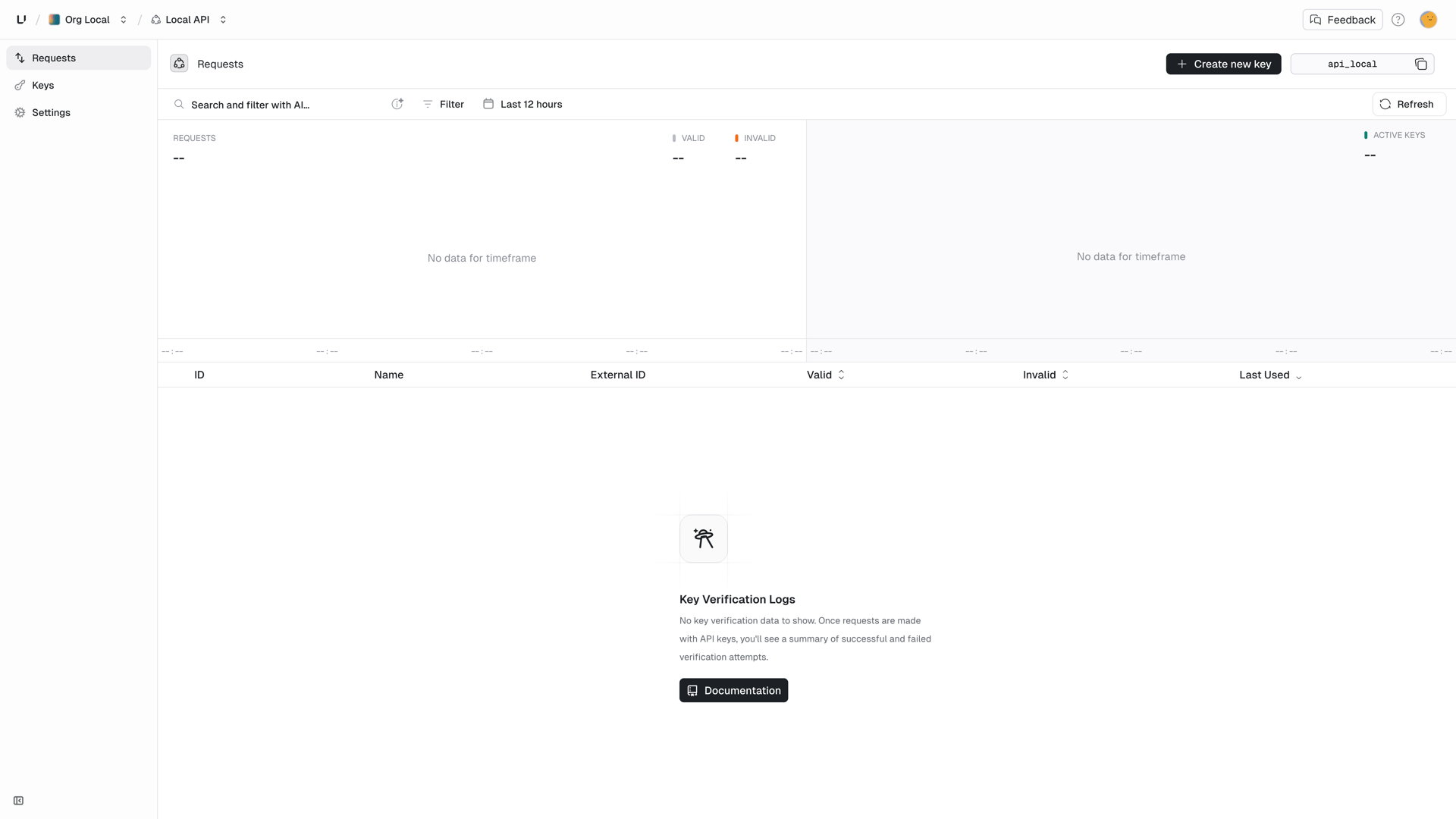
Note your `workspaceId` and `apiId`: - **Workspace ID**: Settings → General
(upper right corner)
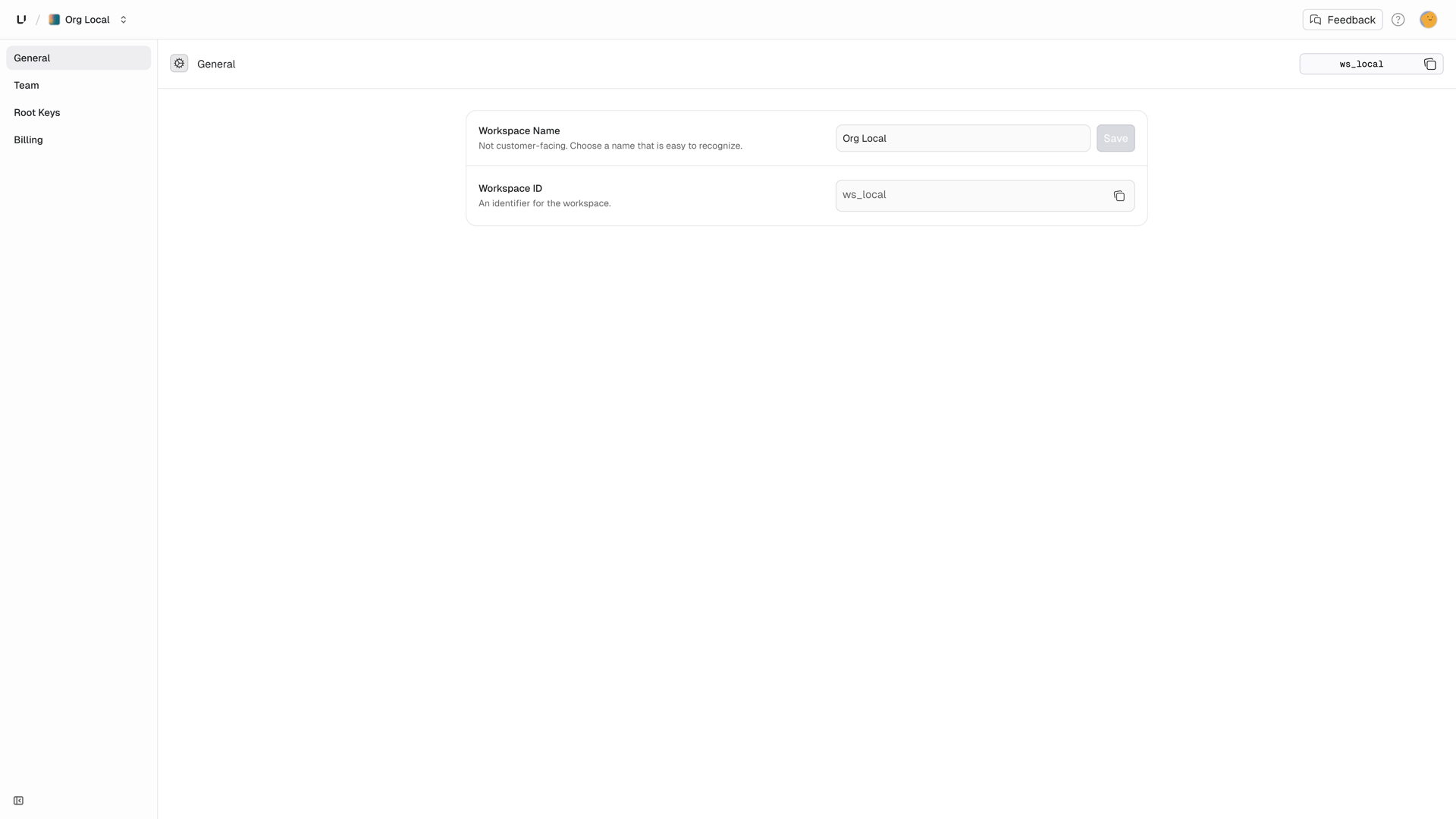 * **API ID**: Keyspaces → Your keyspace (upper right corner)
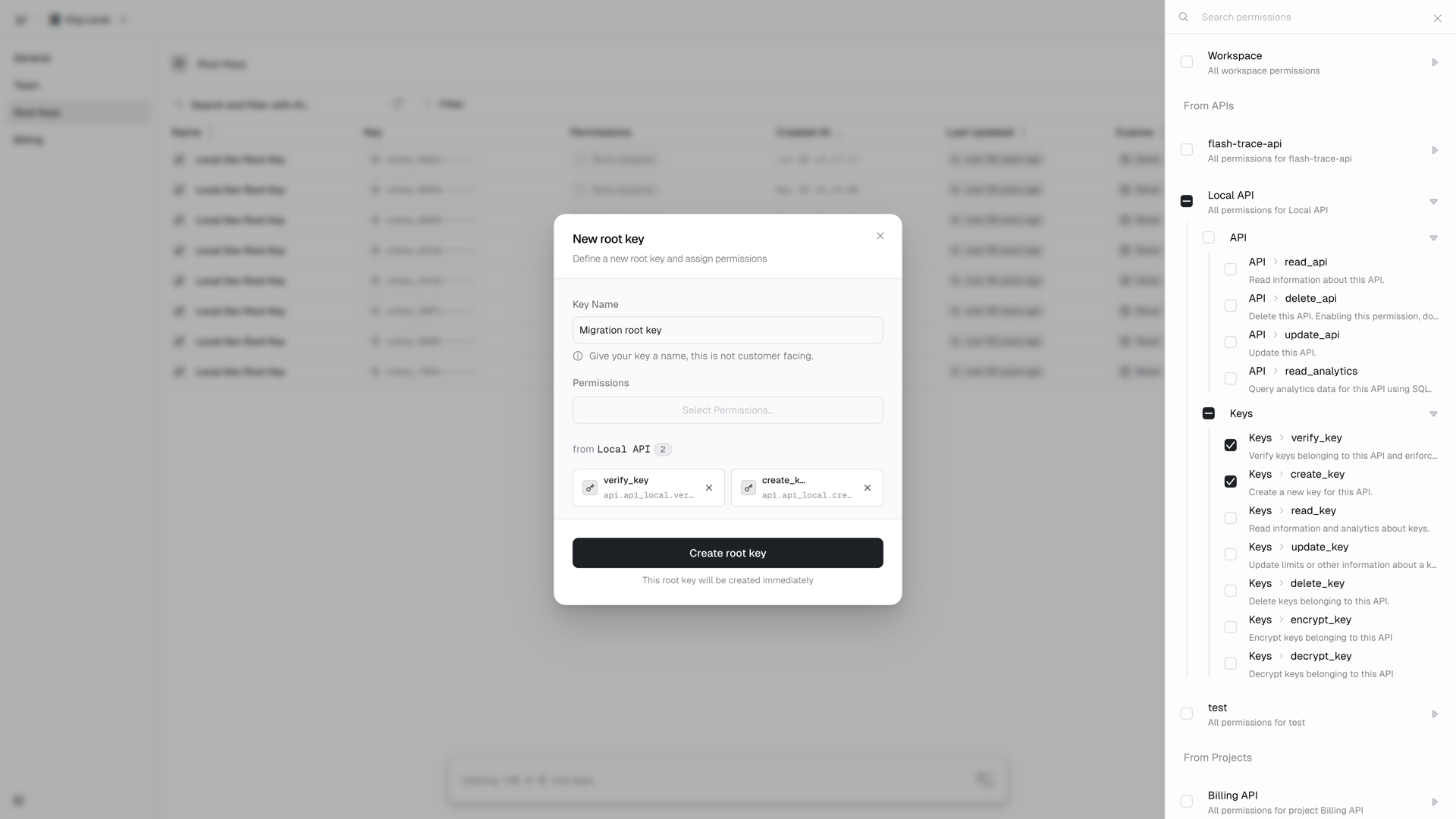
 Go to Settings → Root Keys and create one with the `api.*.create_key`
permission, or `api..create_key` to scope it to the keyspace you are
migrating into. If you also plan to verify keys through the API afterwards,
add `api.*.verify_key`.
Go to Settings → Root Keys and create one with the `api.*.create_key`
permission, or `api..create_key` to scope it to the keyspace you are
migrating into. If you also plan to verify keys through the API afterwards,
add `api.*.verify_key`.
 Email [support@unkey.com](mailto:support@unkey.com) with: - Your workspace
ID - Source system (PostgreSQL, Auth0, etc.) - Hash algorithm and key
format used We'll set up a migration for your workspace and send you a
`migrationId`.
## Hash format
Unkey never stores plaintext keys. During migration you send the hash of each key, and the hash format is part of the migration we configure for you. When we send you your `migrationId`, we'll confirm exactly what to submit as the `hash` value.
The most common setup is SHA-256 of the full key, base64 encoded, which is Unkey's native format. Structured key formats from other providers (for example prefixed keys where only a token segment is hashed) are also supported.
Using a different hash algorithm or key format? Mention it when you contact
us and we'll set up your migration accordingly.
## Export your keys
Extract key hashes from your current system. **Never include plaintext keys.**
### Example: PostgreSQL
```sql theme={"theme":"kanagawa-wave"}
SELECT
key_hash,
user_id,
created_at,
metadata
FROM api_keys
WHERE revoked = false;
```
### Example: MongoDB
```javascript theme={"theme":"kanagawa-wave"}
db.apiKeys.find({ revoked: false }, { hash: 1, userId: 1, metadata: 1 });
```
## Hash your keys (if not already hashed)
If you have plaintext keys, hash them before migration. For a standard SHA-256 migration:
```javascript theme={"theme":"kanagawa-wave"}
const { createHash } = require("node:crypto");
function hashKey(plaintext) {
return createHash("sha256").update(plaintext).digest("base64");
}
```
## Migrate to Unkey
Use the migration API to import your keys:
```javascript theme={"theme":"kanagawa-wave"}
const UNKEY_ROOT_KEY = process.env.UNKEY_ROOT_KEY;
const MIGRATION_ID = "mig_acme"; // From support
const API_ID = "api_...";
// Your exported keys
const keysToMigrate = [
{
hash: "c4fbfe7c69a067cb0841dea343346a750a69908a08ea9656d2a8c19fb0823c64",
externalId: "user_123", // Link to your user
meta: {
plan: "pro",
migratedFrom: "legacy-system",
},
ratelimits: [
{
name: "requests",
limit: 1000,
duration: 60000,
autoApply: true,
},
],
},
// ... more keys
];
const response = await fetch("https://api.unkey.com/v2/keys.migrateKeys", {
method: "POST",
headers: {
"Content-Type": "application/json",
Authorization: `Bearer ${UNKEY_ROOT_KEY}`,
},
body: JSON.stringify({
migrationId: MIGRATION_ID,
apiId: API_ID,
keys: keysToMigrate,
}),
});
const result = await response.json();
if (!response.ok) {
console.error(
"Migration failed:",
result?.error || `HTTP ${response.status}`,
);
return;
}
if (!result?.data) {
console.error("Migration response missing data");
return;
}
console.log("Migrated:", result.data.migrated.length);
console.log("Failed:", result.data.failed.length);
```
## Response
The endpoint returns HTTP 200 even on partial success. Each migrated key comes back with its hash and the generated `keyId`, which you should store to manage the key later. Hashes that could not be migrated, for example because a key with that hash already exists, are listed as plain strings under `failed`:
```json theme={"theme":"kanagawa-wave"}
{
"meta": { "requestId": "req_..." },
"data": {
"migrated": [
{
"hash": "c4fbfe7c69a067cb0841dea343346a750a69908a08ea9656d2a8c19fb0823c64",
"keyId": "key_..."
}
],
"failed": ["e3b0c44298fc1c149afbf4c8996fb92427ae41e4649b934ca495991b7852b855"]
}
}
```
## Key configuration options
Only `hash` is required for each key. It is the hash string in the format agreed for your migration.
Everything else is optional and works the same as when [creating keys](/docs/api-reference/keys/create-api-key): `name` for internal display, `externalId` to link the key to a user or entity in your system, `meta` for arbitrary JSON returned during verification, `roles` and `permissions` for access control, `ratelimits` and `credits` for usage control, `expires` as a Unix timestamp in milliseconds, and `enabled` to control whether the key is active (defaults to `true`).
See the [API reference](/docs/api-reference/keys/migrate-api-keys) for the full schema of each field.
## Batch migrations
For large migrations, batch your requests:
```javascript theme={"theme":"kanagawa-wave"}
const BATCH_SIZE = 100;
async function migrateAll(allKeys) {
const results = { migrated: 0, failed: 0 };
for (let i = 0; i < allKeys.length; i += BATCH_SIZE) {
const batch = allKeys.slice(i, i + BATCH_SIZE);
const response = await fetch("https://api.unkey.com/v2/keys.migrateKeys", {
method: "POST",
headers: {
"Content-Type": "application/json",
Authorization: `Bearer ${UNKEY_ROOT_KEY}`,
},
body: JSON.stringify({
migrationId: MIGRATION_ID,
apiId: API_ID,
keys: batch,
}),
});
const result = await response.json();
const batchNum = Math.floor(i / BATCH_SIZE) + 1;
if (!response.ok) {
console.error(
`Batch ${batchNum} failed:`,
result?.error || `HTTP ${response.status}`,
);
results.failed += batch.length;
continue;
}
if (!result?.data) {
console.error(`Batch ${batchNum} missing data`);
results.failed += batch.length;
continue;
}
results.migrated += result.data.migrated.length;
results.failed += result.data.failed.length;
console.log(`Batch ${batchNum}: ${result.data.migrated.length} migrated`);
}
return results;
}
```
## Update your verification
After migration, update your API to verify keys with Unkey. Include your `migrationId` in each [verify key](/docs/api-reference/keys/verify-api-key) request during the rollout:
```javascript theme={"theme":"kanagawa-wave"}
// Before: Custom verification
const isValid = await myDatabase.verifyKey(apiKey);
// After: Unkey verification
const response = await fetch("https://api.unkey.com/v2/keys.verifyKey", {
method: "POST",
headers: {
"Content-Type": "application/json",
Authorization: "Bearer " + process.env.UNKEY_ROOT_KEY,
},
body: JSON.stringify({ key: apiKey, migrationId: MIGRATION_ID }),
});
const result = await response.json();
if (!response.ok || !result?.data) {
// Handle error appropriately
return { valid: false, error: result?.error || "Verification failed" };
}
const isValid = result.data.valid;
```
The `migrationId` lets Unkey match the key against your previous format and transparently convert it to Unkey's native hash on first verification. Once every active key has been verified at least once, you can drop the parameter.
## Rollback plan
Keep your old verification system running in parallel during migration:
```javascript theme={"theme":"kanagawa-wave"}
async function verifyKey(apiKey) {
// Try Unkey first
const unkeyResult = await verifyWithUnkey(apiKey);
if (unkeyResult.valid) {
return unkeyResult;
}
// Fall back to legacy system (temporary)
const legacyResult = await verifyWithLegacy(apiKey);
if (legacyResult.valid) {
const maskedKey = apiKey.slice(0, 5) + "..." + apiKey.slice(-5);
console.log("Key found in legacy, not yet migrated:", maskedKey);
}
return legacyResult;
}
```
Remove the fallback once migration is complete and verified.
## Need help?
We'll help you plan and execute your migration safely.
Email [support@unkey.com](mailto:support@unkey.com) with: - Your workspace
ID - Source system (PostgreSQL, Auth0, etc.) - Hash algorithm and key
format used We'll set up a migration for your workspace and send you a
`migrationId`.
## Hash format
Unkey never stores plaintext keys. During migration you send the hash of each key, and the hash format is part of the migration we configure for you. When we send you your `migrationId`, we'll confirm exactly what to submit as the `hash` value.
The most common setup is SHA-256 of the full key, base64 encoded, which is Unkey's native format. Structured key formats from other providers (for example prefixed keys where only a token segment is hashed) are also supported.
Using a different hash algorithm or key format? Mention it when you contact
us and we'll set up your migration accordingly.
## Export your keys
Extract key hashes from your current system. **Never include plaintext keys.**
### Example: PostgreSQL
```sql theme={"theme":"kanagawa-wave"}
SELECT
key_hash,
user_id,
created_at,
metadata
FROM api_keys
WHERE revoked = false;
```
### Example: MongoDB
```javascript theme={"theme":"kanagawa-wave"}
db.apiKeys.find({ revoked: false }, { hash: 1, userId: 1, metadata: 1 });
```
## Hash your keys (if not already hashed)
If you have plaintext keys, hash them before migration. For a standard SHA-256 migration:
```javascript theme={"theme":"kanagawa-wave"}
const { createHash } = require("node:crypto");
function hashKey(plaintext) {
return createHash("sha256").update(plaintext).digest("base64");
}
```
## Migrate to Unkey
Use the migration API to import your keys:
```javascript theme={"theme":"kanagawa-wave"}
const UNKEY_ROOT_KEY = process.env.UNKEY_ROOT_KEY;
const MIGRATION_ID = "mig_acme"; // From support
const API_ID = "api_...";
// Your exported keys
const keysToMigrate = [
{
hash: "c4fbfe7c69a067cb0841dea343346a750a69908a08ea9656d2a8c19fb0823c64",
externalId: "user_123", // Link to your user
meta: {
plan: "pro",
migratedFrom: "legacy-system",
},
ratelimits: [
{
name: "requests",
limit: 1000,
duration: 60000,
autoApply: true,
},
],
},
// ... more keys
];
const response = await fetch("https://api.unkey.com/v2/keys.migrateKeys", {
method: "POST",
headers: {
"Content-Type": "application/json",
Authorization: `Bearer ${UNKEY_ROOT_KEY}`,
},
body: JSON.stringify({
migrationId: MIGRATION_ID,
apiId: API_ID,
keys: keysToMigrate,
}),
});
const result = await response.json();
if (!response.ok) {
console.error(
"Migration failed:",
result?.error || `HTTP ${response.status}`,
);
return;
}
if (!result?.data) {
console.error("Migration response missing data");
return;
}
console.log("Migrated:", result.data.migrated.length);
console.log("Failed:", result.data.failed.length);
```
## Response
The endpoint returns HTTP 200 even on partial success. Each migrated key comes back with its hash and the generated `keyId`, which you should store to manage the key later. Hashes that could not be migrated, for example because a key with that hash already exists, are listed as plain strings under `failed`:
```json theme={"theme":"kanagawa-wave"}
{
"meta": { "requestId": "req_..." },
"data": {
"migrated": [
{
"hash": "c4fbfe7c69a067cb0841dea343346a750a69908a08ea9656d2a8c19fb0823c64",
"keyId": "key_..."
}
],
"failed": ["e3b0c44298fc1c149afbf4c8996fb92427ae41e4649b934ca495991b7852b855"]
}
}
```
## Key configuration options
Only `hash` is required for each key. It is the hash string in the format agreed for your migration.
Everything else is optional and works the same as when [creating keys](/docs/api-reference/keys/create-api-key): `name` for internal display, `externalId` to link the key to a user or entity in your system, `meta` for arbitrary JSON returned during verification, `roles` and `permissions` for access control, `ratelimits` and `credits` for usage control, `expires` as a Unix timestamp in milliseconds, and `enabled` to control whether the key is active (defaults to `true`).
See the [API reference](/docs/api-reference/keys/migrate-api-keys) for the full schema of each field.
## Batch migrations
For large migrations, batch your requests:
```javascript theme={"theme":"kanagawa-wave"}
const BATCH_SIZE = 100;
async function migrateAll(allKeys) {
const results = { migrated: 0, failed: 0 };
for (let i = 0; i < allKeys.length; i += BATCH_SIZE) {
const batch = allKeys.slice(i, i + BATCH_SIZE);
const response = await fetch("https://api.unkey.com/v2/keys.migrateKeys", {
method: "POST",
headers: {
"Content-Type": "application/json",
Authorization: `Bearer ${UNKEY_ROOT_KEY}`,
},
body: JSON.stringify({
migrationId: MIGRATION_ID,
apiId: API_ID,
keys: batch,
}),
});
const result = await response.json();
const batchNum = Math.floor(i / BATCH_SIZE) + 1;
if (!response.ok) {
console.error(
`Batch ${batchNum} failed:`,
result?.error || `HTTP ${response.status}`,
);
results.failed += batch.length;
continue;
}
if (!result?.data) {
console.error(`Batch ${batchNum} missing data`);
results.failed += batch.length;
continue;
}
results.migrated += result.data.migrated.length;
results.failed += result.data.failed.length;
console.log(`Batch ${batchNum}: ${result.data.migrated.length} migrated`);
}
return results;
}
```
## Update your verification
After migration, update your API to verify keys with Unkey. Include your `migrationId` in each [verify key](/docs/api-reference/keys/verify-api-key) request during the rollout:
```javascript theme={"theme":"kanagawa-wave"}
// Before: Custom verification
const isValid = await myDatabase.verifyKey(apiKey);
// After: Unkey verification
const response = await fetch("https://api.unkey.com/v2/keys.verifyKey", {
method: "POST",
headers: {
"Content-Type": "application/json",
Authorization: "Bearer " + process.env.UNKEY_ROOT_KEY,
},
body: JSON.stringify({ key: apiKey, migrationId: MIGRATION_ID }),
});
const result = await response.json();
if (!response.ok || !result?.data) {
// Handle error appropriately
return { valid: false, error: result?.error || "Verification failed" };
}
const isValid = result.data.valid;
```
The `migrationId` lets Unkey match the key against your previous format and transparently convert it to Unkey's native hash on first verification. Once every active key has been verified at least once, you can drop the parameter.
## Rollback plan
Keep your old verification system running in parallel during migration:
```javascript theme={"theme":"kanagawa-wave"}
async function verifyKey(apiKey) {
// Try Unkey first
const unkeyResult = await verifyWithUnkey(apiKey);
if (unkeyResult.valid) {
return unkeyResult;
}
// Fall back to legacy system (temporary)
const legacyResult = await verifyWithLegacy(apiKey);
if (legacyResult.valid) {
const maskedKey = apiKey.slice(0, 5) + "..." + apiKey.slice(-5);
console.log("Key found in legacy, not yet migrated:", maskedKey);
}
return legacyResult;
}
```
Remove the fallback once migration is complete and verified.
## Need help?
We'll help you plan and execute your migration safely.