> ## Documentation Index
> Fetch the complete documentation index at: https://unkey.com/docs/llms.txt
> Use this file to discover all available pages before exploring further.
> ## Agent Instructions
> Unkey is two separate products. Compute builds, deploys, and runs apps behind a gateway. API Management issues API keys, enforces rate limits, manages identities and permissions, and reports usage. Say which product a page belongs to; a reader can use either without the other.
> Every Unkey API endpoint is an HTTP POST to https://api.unkey.com/v2/{service}.{procedure} with a root key in the Authorization: Bearer header. Root keys are workspace scoped.
> Error codes have the form err:{system}:{category}:{specific} and each has a page at /errors/{system}/{category}/{specific}.
> The word environment means production or preview in Compute. Rate limiting has four meanings on this site; the glossary lists them.
# Keyspace settings
> Set the defaults and protections that apply to every key in a keyspace.
These settings apply to every key in a keyspace. Change them on the keyspace's **Settings** page in the dashboard. There's no API for this. For encrypted key storage and the IP allow list, contact support.
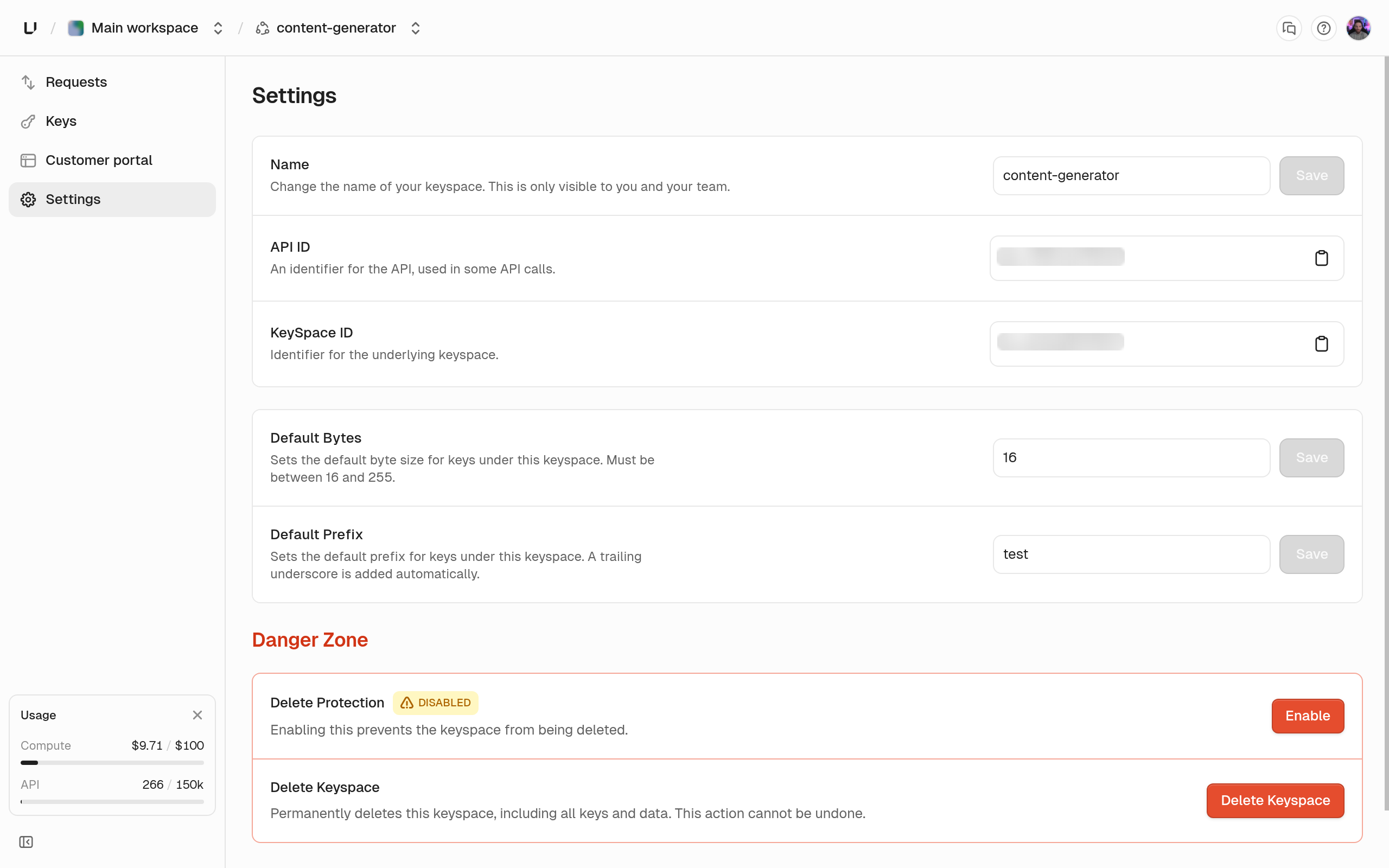 ## Name and identifiers
The label shown in the dashboard. You can change it any time.
Read-only, `api_...`. Pass it as `apiId` when creating or listing keys.
Read-only, `ks_...`. Used by analytics (`key_space_id`) and the customer portal.
## Key generation defaults
These apply when a `keys.createKey` request leaves out `prefix` or `byteLength`.
Up to 16 characters. New keys without their own `prefix` look like `_`. Rerolling a key with no prefix also uses it.
Random bytes in a new key when the request leaves out `byteLength`. The API accepts 16 to 255. Rerolled keys always use this value (or 16 if unset), not the original key's length.
## Store encrypted keys
When on, you can create recoverable keys and read them back with `decrypt: true`. When off, `keys.createKey` with `recoverable: true` fails with HTTP 412 "This API does not support key encryption." There's no dashboard toggle. Contact support to turn it on. See [Recoverable keys](/docs/api-management/keys/recoverable-keys).
## IP allow list
A comma-separated list of IP addresses, up to 512 characters. When set, a verification of any key in this keyspace fails with `code: FORBIDDEN` unless it comes from an IP on the list.
Matching is exact, for IPv4 and IPv6. CIDR ranges such as `10.0.0.0/8` don't work. A request with no client IP is also rejected with `FORBIDDEN`.
New keyspaces have no allow list. Contact support to set or change one. You can't see the list in the dashboard or the API, so if verifications return `FORBIDDEN` and you don't know why, ask support whether an allow list is set.
## Delete protection
When on, **Delete Keyspace** in the dashboard and `apis.deleteApi` both fail with HTTP 412 `err:unkey:application:protected_resource`. Switch it on the **Delete Protection** card and type the keyspace name to confirm. The change shows in the audit log as `api.update`.
Protection covers the keyspace only. You can still delete keys inside it. [Delete protection](/docs/platform/security/delete-protection) describes the same flag on the other resource types.
## Delete keyspace
The **Delete Keyspace** card in the danger zone deletes the keyspace after you type its name and the confirmation word. Every key in it then verifies as `NOT_FOUND`. You can't undo this from the dashboard.
## Name and identifiers
The label shown in the dashboard. You can change it any time.
Read-only, `api_...`. Pass it as `apiId` when creating or listing keys.
Read-only, `ks_...`. Used by analytics (`key_space_id`) and the customer portal.
## Key generation defaults
These apply when a `keys.createKey` request leaves out `prefix` or `byteLength`.
Up to 16 characters. New keys without their own `prefix` look like `_`. Rerolling a key with no prefix also uses it.
Random bytes in a new key when the request leaves out `byteLength`. The API accepts 16 to 255. Rerolled keys always use this value (or 16 if unset), not the original key's length.
## Store encrypted keys
When on, you can create recoverable keys and read them back with `decrypt: true`. When off, `keys.createKey` with `recoverable: true` fails with HTTP 412 "This API does not support key encryption." There's no dashboard toggle. Contact support to turn it on. See [Recoverable keys](/docs/api-management/keys/recoverable-keys).
## IP allow list
A comma-separated list of IP addresses, up to 512 characters. When set, a verification of any key in this keyspace fails with `code: FORBIDDEN` unless it comes from an IP on the list.
Matching is exact, for IPv4 and IPv6. CIDR ranges such as `10.0.0.0/8` don't work. A request with no client IP is also rejected with `FORBIDDEN`.
New keyspaces have no allow list. Contact support to set or change one. You can't see the list in the dashboard or the API, so if verifications return `FORBIDDEN` and you don't know why, ask support whether an allow list is set.
## Delete protection
When on, **Delete Keyspace** in the dashboard and `apis.deleteApi` both fail with HTTP 412 `err:unkey:application:protected_resource`. Switch it on the **Delete Protection** card and type the keyspace name to confirm. The change shows in the audit log as `api.update`.
Protection covers the keyspace only. You can still delete keys inside it. [Delete protection](/docs/platform/security/delete-protection) describes the same flag on the other resource types.
## Delete keyspace
The **Delete Keyspace** card in the danger zone deletes the keyspace after you type its name and the confirmation word. Every key in it then verifies as `NOT_FOUND`. You can't undo this from the dashboard.