> ## Documentation Index
> Fetch the complete documentation index at: https://unkey.com/docs/llms.txt
> Use this file to discover all available pages before exploring further.
> ## Agent Instructions
> Unkey is two separate products. Compute builds, deploys, and runs apps behind a gateway. API Management issues API keys, enforces rate limits, manages identities and permissions, and reports usage. Say which product a page belongs to; a reader can use either without the other.
> Every Unkey API endpoint is an HTTP POST to https://api.unkey.com/v2/{service}.{procedure} with a root key in the Authorization: Bearer header. Root keys are workspace scoped.
> Error codes have the form err:{system}:{category}:{specific} and each has a page at /errors/{system}/{category}/{specific}.
> The word environment means production or preview in Compute. Rate limiting has four meanings on this site; the glossary lists them.
# Keyspaces
> Group related keys in a keyspace and decide when you need more than one.
A keyspace is a group of related API keys. Every key belongs to one keyspace, and you name it every time you create a key. It's not a running service and has no URL. The dashboard lists keyspaces under **Keyspaces (APIs)**, and API endpoints call them APIs, as in `apis.createApi`.
## When to create more than one
One keyspace is enough when all your keys share the same defaults and you tell them apart by metadata or identity. Create more when you want a hard boundary: different key prefixes per product, separate analytics per environment such as production and staging, or root keys that can only touch one product's keys. Root key permissions such as `api..create_key` can be limited to one keyspace.
## Two identifiers
Each keyspace has two IDs, used in different places.
| Identifier | Format | Used by |
| - | - | - |
| API ID | `api_...` | `keys.createKey`, `apis.listKeys`, `apis.getApi`, `apis.deleteApi`, and root key permissions such as `api..verify_key` |
| Keyspace ID | `ks_...` | Analytics tables (`key_space_id`), the `keyspaces` filter on `keys.verifyKey`, and the customer portal |
Both appear on the keyspace's **Settings** page with a copy button.
## Settings that apply to every key
These settings apply to every key in the keyspace. [Keyspace settings](/docs/api-management/keyspaces/settings) covers each one.
| Setting | Effect |
| - | - |
| Default prefix | Prepended to new keys that do not pass their own `prefix`. |
| Default bytes | Random bytes used for new keys that do not pass their own `byteLength`; 16 unless changed. |
| Store encrypted keys | Allows keys to be created as recoverable; opt-in through support. |
| IP allow list | Verification rejects requests from any other client IP; exact match, not editable in the dashboard. |
| Delete protection | Blocks `apis.deleteApi` and the dashboard delete button while on. |
## Create a keyspace
You need a root key with the permissions listed on this page. Create one in the dashboard under **Settings > Root Keys**, and pass it as `Authorization: Bearer `. See [Permission reference](/docs/platform/root-keys/permissions-legacy) for every permission.
Open **Keyspaces (APIs)** in the sidebar, click **Create keyspace**, and enter a name. Both IDs are on the new keyspace's settings page.
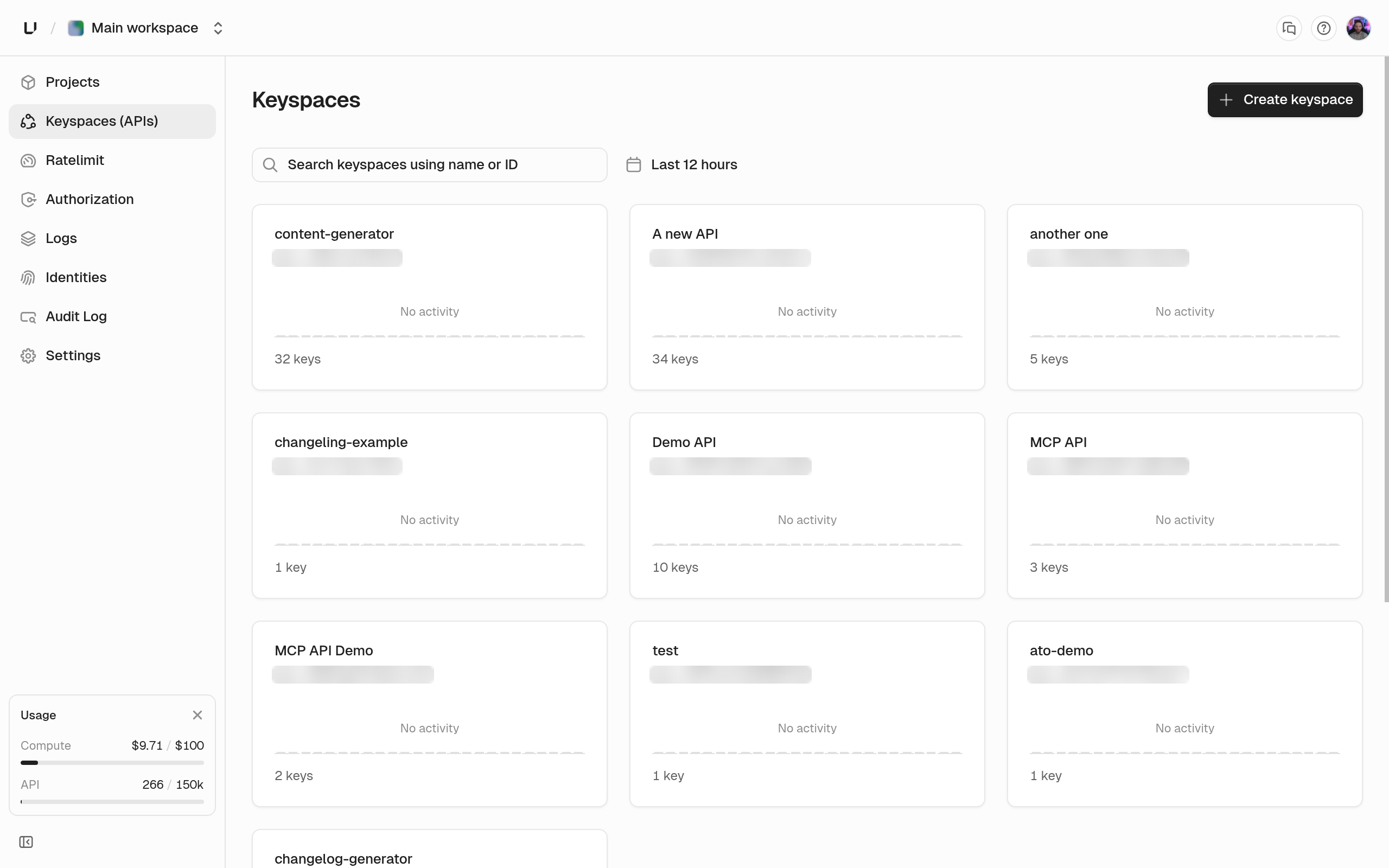 `apis.createApi` takes a `name` (3 to 256 characters, just a label) and needs `api.*.create_api` on the root key. The response has the new API ID.
```bash theme={"theme":"kanagawa-wave"}
curl -X POST https://api.unkey.com/v2/apis.createApi \
-H "Authorization: Bearer $UNKEY_ROOT_KEY" \
-H "Content-Type: application/json" \
-d '{ "name": "payment-service-prod" }'
```
`apis.getApi` returns the `id` and `name` for an API ID you already have.
## Delete a keyspace
Deleting a keyspace makes every key in it verify as `NOT_FOUND`. In the dashboard, use the **Delete Keyspace** card in the settings danger zone and type the keyspace name and the confirmation phrase. From the API, call `apis.deleteApi` with the `apiId`. It needs `api.*.delete_api` or `api..delete_api`.
If delete protection is on, both fail with HTTP 412 `err:unkey:application:protected_resource`. Turn protection off on the settings page first. See [Delete protection](/docs/platform/security/delete-protection).
## Next steps
Defaults, encrypted storage, IP allow list, and delete protection.
Page through the keys in a keyspace and filter by owner.
`apis.createApi` takes a `name` (3 to 256 characters, just a label) and needs `api.*.create_api` on the root key. The response has the new API ID.
```bash theme={"theme":"kanagawa-wave"}
curl -X POST https://api.unkey.com/v2/apis.createApi \
-H "Authorization: Bearer $UNKEY_ROOT_KEY" \
-H "Content-Type: application/json" \
-d '{ "name": "payment-service-prod" }'
```
`apis.getApi` returns the `id` and `name` for an API ID you already have.
## Delete a keyspace
Deleting a keyspace makes every key in it verify as `NOT_FOUND`. In the dashboard, use the **Delete Keyspace** card in the settings danger zone and type the keyspace name and the confirmation phrase. From the API, call `apis.deleteApi` with the `apiId`. It needs `api.*.delete_api` or `api..delete_api`.
If delete protection is on, both fail with HTTP 412 `err:unkey:application:protected_resource`. Turn protection off on the settings page first. See [Delete protection](/docs/platform/security/delete-protection).
## Next steps
Defaults, encrypted storage, IP allow list, and delete protection.
Page through the keys in a keyspace and filter by owner.