> ## Documentation Index
> Fetch the complete documentation index at: https://unkey.com/docs/llms.txt
> Use this file to discover all available pages before exploring further.
> ## Agent Instructions
> Unkey is two separate products. Compute builds, deploys, and runs apps behind a gateway. API Management issues API keys, enforces rate limits, manages identities and permissions, and reports usage. Say which product a page belongs to; a reader can use either without the other.
> Every Unkey API endpoint is an HTTP POST to https://api.unkey.com/v2/{service}.{procedure} with a root key in the Authorization: Bearer header. Root keys are workspace scoped.
> Error codes have the form err:{system}:{category}:{specific} and each has a page at /errors/{system}/{category}/{specific}.
> The word environment means production or preview in Compute. Rate limiting has four meanings on this site; the glossary lists them.
# Issue and verify your first key
> Create a keyspace and verify your first key in a few minutes.
export const ProductLink = ({product, href, title, children}) => {
const productNames = {
compute: "Compute",
"api-management": "API Management",
platform: "Platform"
};
return
;
};
Create a keyspace, issue a key, and verify it from your backend. Every step is an HTTPS call to `api.unkey.com`, so it works from any host or language.
You need a root key with the permissions listed on this page. Create one in the dashboard under **Settings > Root Keys**, and pass it as `Authorization: Bearer `. See [Permission reference](/docs/platform/root-keys/permissions-legacy) for every permission.
The root key you create needs `api.*.create_key` and `api.*.verify_key`. Pick your language with the switcher. Only the steps that call the API change.
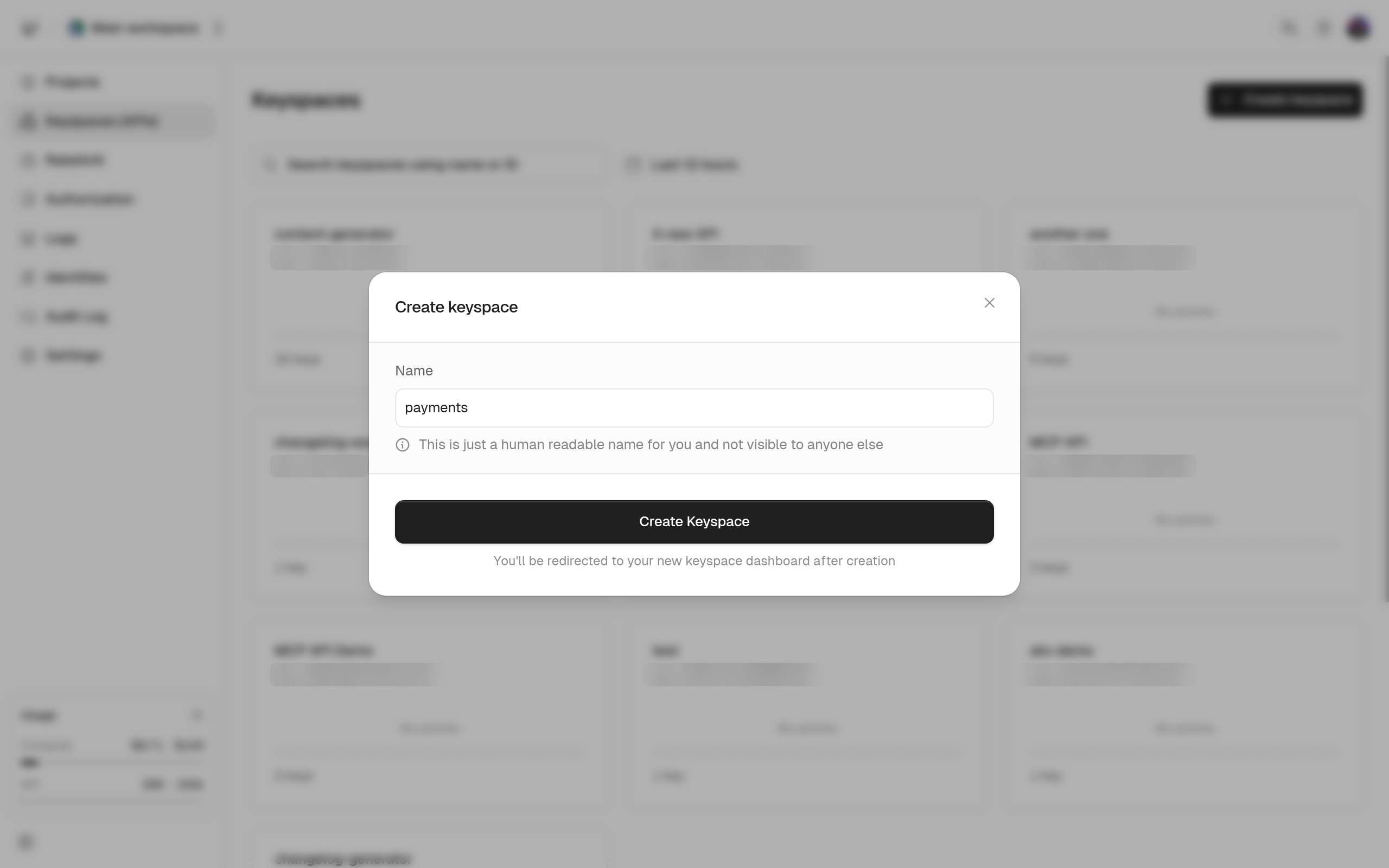
A keyspace holds the keys for one product, environment, or tier. In the dashboard, open **Keyspaces (APIs)** in the sidebar, click **Create keyspace**, and give it a name. Copy the **API ID** (`api_...`) from its settings page. You pass it when you create keys.
Call `keys.createKey` with the API ID. The `name` is only for you. Your users never see it.
```bash theme={"theme":"kanagawa-wave"}
curl -X POST https://api.unkey.com/v2/keys.createKey \
-H "Authorization: Bearer $UNKEY_ROOT_KEY" \
-H "Content-Type: application/json" \
-d '{
"apiId": "api_...",
"name": "My first key"
}'
```
This is the only time you see the key. Copy `data.key` now and give it to your user.
```json theme={"theme":"kanagawa-wave"}
{
"meta": { "requestId": "req_..." },
"data": {
"keyId": "key_...",
"key": "..."
}
}
```
This is the call your backend makes on every incoming request. There's no `apiId` field because the key alone identifies its keyspace.
```bash theme={"theme":"kanagawa-wave"}
curl -X POST https://api.unkey.com/v2/keys.verifyKey \
-H "Authorization: Bearer $UNKEY_ROOT_KEY" \
-H "Content-Type: application/json" \
-d '{ "key": "" }'
```
```bash theme={"theme":"kanagawa-wave"}
npm install @unkey/api
```
```typescript create-key.ts theme={"theme":"kanagawa-wave"}
import { Unkey } from "@unkey/api";
const unkey = new Unkey({ rootKey: process.env.UNKEY_ROOT_KEY });
const { data } = await unkey.keys.createKey({
apiId: "api_...",
name: "My first key",
});
// Shown once. Store it or send it to your user now.
console.log(data.key);
```
There's no `apiId` field because the key alone identifies its keyspace.
```typescript verify-key.ts theme={"theme":"kanagawa-wave"}
const { data } = await unkey.keys.verifyKey({ key: incomingKey });
if (!data.valid) {
// data.code says why: NOT_FOUND, EXPIRED, RATE_LIMITED, ...
throw new Error(`denied: ${data.code}`);
}
console.log(data.keyId);
```
```bash theme={"theme":"kanagawa-wave"}
go get github.com/unkeyed/sdks/api/go/v3@latest
```
```go main.go theme={"theme":"kanagawa-wave"}
package main
import (
"context"
"fmt"
"os"
unkey "github.com/unkeyed/sdks/api/go/v3"
"github.com/unkeyed/sdks/api/go/v3/models/components"
)
func main() {
client := unkey.New(unkey.WithSecurity(os.Getenv("UNKEY_ROOT_KEY")))
res, err := client.Keys.CreateKey(context.Background(), components.V2KeysCreateKeyRequestBody{
APIID: "api_...",
Name: unkey.String("My first key"),
})
if err != nil {
panic(err)
}
// Shown once. Store it or send it to your user now.
fmt.Println(res.V2KeysCreateKeyResponseBody.Data.Key)
}
```
There's no `apiId` field because the key alone identifies its keyspace.
```go verify.go theme={"theme":"kanagawa-wave"}
res, err := client.Keys.VerifyKey(ctx, components.V2KeysVerifyKeyRequestBody{
Key: incomingKey,
})
if err != nil {
return err
}
data := res.V2KeysVerifyKeyResponseBody.Data
if !data.Valid {
// data.Code says why: NOT_FOUND, EXPIRED, RATE_LIMITED, ...
return fmt.Errorf("denied: %s", data.Code)
}
```
```bash theme={"theme":"kanagawa-wave"}
pip install unkey.py
```
```python create_key.py theme={"theme":"kanagawa-wave"}
import os
from unkey.py import Unkey
with Unkey(root_key=os.environ["UNKEY_ROOT_KEY"]) as unkey:
res = unkey.keys.create_key(api_id="api_...", name="My first key")
# Shown once. Store it or send it to your user now.
print(res.data.key)
```
There's no `api_id` argument because the key alone identifies its keyspace.
```python verify_key.py theme={"theme":"kanagawa-wave"}
res = unkey.keys.verify_key(key=incoming_key)
if not res.data.valid:
# res.data.code says why: NOT_FOUND, EXPIRED, RATE_LIMITED, ...
raise PermissionError(f"denied: {res.data.code}")
```
## How you read the verification response
Verification returns HTTP 200 even when the key is rejected. `data.valid` tells you whether the key passed. When it didn't, `data.code` says why.
```json theme={"theme":"kanagawa-wave"}
{
"meta": { "requestId": "req_..." },
"data": {
"valid": true,
"code": "VALID",
"keyId": "key_...",
"name": "My first key",
"enabled": true
}
}
```
The response gets more fields as you set more on the key, such as `credits`, `ratelimits`, `meta`, and `identity`. [Verifying keys](/docs/api-management/keys/verifying-keys) lists every field and every `code` value.
## Next steps
Prefixes, expiry, credits, rate limits, permissions, and metadata on one key.
The order of checks, the `code` enum, and caching behavior.
Sell a fixed number of requests and refill them on a schedule.
How the objects you just used fit together.
If you host your app on Unkey, the gateway's key-auth policy can run this verification before a request reaches your code.